Rated 5 star on

iPad Kiosk Apps: Check-In and Self-Service
Quick answer
An iPad kiosk lets visitors check in, order or sign in without waiting for staff. Design for strangers with big buttons, few steps and no sign-in. Reset after a short idle time to protect privacy. Mount within wheelchair reach and offer several languages. Lock the iPad to the kiosk app.
Lines at the front desk cost time and patience. An iPad kiosk lets visitors check in, order, sign in or find what they need without waiting for staff. But a kiosk isn't a regular app: strangers use it for seconds, often in a hurry. Design and setup decide whether it helps.
Key Takeaways
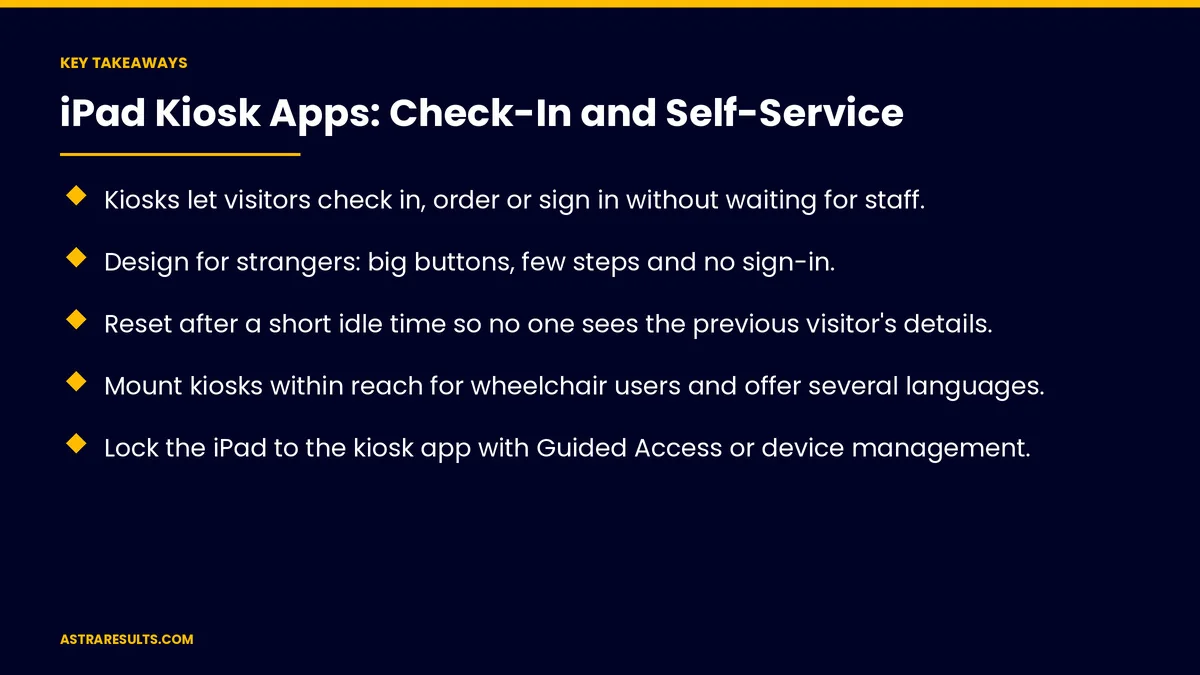
- Kiosks let visitors check in, order or sign in without waiting for staff.
- Design for strangers: big buttons, few steps and no sign-in.
- Reset after a short idle time so no one sees the previous visitor's details.
- Mount kiosks within reach for wheelchair users and offer several languages.
- Lock the iPad to the kiosk app with Guided Access or device management.
- Connect kiosks to scheduling, sales and staff alerts.
Published: October 20, 2026 | Reading Time: ~8 minutes | Category: iPad App Development
This guide covers iPad kiosk apps: common uses, designing for strangers, auto-reset, accessibility, languages, privacy, locking to one app, hardware, payments, connecting to your systems and what to measure. Put plainly: make every visit start fresh, take a few taps and leave nothing behind for the next person.
For securing company iPads, see enterprise mobile apps.
In This Playbook
- Common uses
- Design for strangers
- How should an iPad kiosk reset between visitors?
- Accessibility
- Languages
- How much visitor information should a kiosk show?
- Locking to one app
- Hardware
- Payments
- Connect to your systems
- What to measure
- The first three months
Common uses
Office and clinic check-in. Arrive, confirm and wait to be called.
Visitor sign-in. Name, host and purpose of visit.
Restaurant ordering. Browse, customize and pay.
Retail lookup. Stock, sizes and product details.
Events. Badges and registration.
Feedback. Quick surveys before leaving.
Design for strangers
Big buttons. Easy to tap standing up.
Few steps. Three or four screens at most.
No sign-in. Look up by name, phone or booking code.
A clear start screen. "Tap to check in."
Help nearby. A way to call staff.
How should an iPad kiosk reset between visitors?
Short idle timeout. Return to the start screen after inactivity.
Clear every field. No previous visitor's name or details.
A friendly warning. "Still there?" before resetting.
Accessibility
Within reach. Mount at a height wheelchair users can reach.
Readable text. Large fonts and strong contrast.
Screen reader support. For visitors who need it.
Public settings face added rules, as in school apps.
Languages
Choose on the first screen. English, Spanish and other languages visitors speak.
Fully translated. Every screen and message.
How much visitor information should a kiosk show?
Show minimal information. First name or initials, not full records.
Clinics need extra care. Health details stay off public screens.
Nothing stored on the device. Data goes straight to your systems.
Locking to one app
Guided Access. Keeps the iPad in one app.
Device management. Single-app mode for many kiosks at once.
Remote updates. Push new versions without visiting each kiosk.
The device side is covered in enterprise mobile apps.
Hardware
Secure stands and enclosures. Theft and tamper resistance.
Steady power. Cables hidden and protected.
Cleaning. Screens wiped regularly.
A spare. For quick swaps.
Payments
Certified card readers. Paired with the kiosk.
Tap to pay. Contactless cards and phones, including Apple Pay, as covered in Apple ecosystem integration.
Receipts. By text or email, with consent.
Connect to your systems
Scheduling. Check-ins update appointments.
Sales systems. Orders flow to the kitchen or register.
Staff alerts. "Your 2 p.m. has arrived."
Booking and payment tools are covered in website integrations.
What to measure
Check-in time. From first tap to done.
Abandoned sessions. Where visitors give up.
Front desk time saved. Hours per week.
Line length. At busy times.
Visitor feedback. Easy or frustrating.
The first three months
Days 1–30: design
Choose the kiosk's job, design three or four simple screens with languages and auto-reset and plan accessible mounting.
Days 31–60: build and set up
Connect to scheduling or sales systems, lock iPads to the app and install stands, power and card readers.
Days 61–90: launch and improve
Launch at one location, watch where visitors get stuck and track check-in time and abandoned sessions.
How Astra builds kiosk apps
Astra Results Marketing builds iPad kiosk apps for check-in and self-service. We design for strangers, reset after every visit, support languages and accessibility, lock iPads to the app and connect kiosks to your systems.
Engagements begin with a kiosk planning session through our iPad app development team.
Related reading
Frequently asked questions
What can an iPad kiosk do?
Check visitors in, sign in guests, take orders, look up products, register event attendees and collect feedback.
How do we protect visitor privacy?
Reset after a short idle time, show minimal information on screen and send data straight to your systems instead of storing it on the device.
How do we keep visitors in the kiosk app?
Use Guided Access or device management to lock the iPad to one app.
How should kiosks handle accessibility?
Mount within reach for wheelchair users, use large text and strong contrast and support screen readers.
Can kiosks take payments?
Yes, with certified card readers, including contactless cards and phones.
How do we measure success?
Check-in time, abandoned sessions, front desk time saved, line length and visitor feedback.
Ready to shorten the line at your front desk? Astra Results Marketing builds iPad kiosk apps that are simple for strangers, reset after every visit, protect privacy and connect to your systems. ▸ CALL (786) 321-2866 · ▸ REQUEST YOUR CONSULTATION