Rated 5 star on


QuickBooks Integrations That Remove Double Entry
Quick answer
Connecting your CRM, store, checkout and payment tools to QuickBooks removes retyping while keeping the books accurate. First decide which system owns customers, items and invoices. Map each source to the right accounts and taxes. Record payouts with sales, fees and refunds shown separately, so deposits match the bank. Involve your accountant early.
In many businesses, someone spends hours each week retyping invoices, store sales and payouts into QuickBooks. Every retyped number is a chance for an error, and month-end becomes a hunt for differences. Connecting those tools to QuickBooks lets the data flow in once, while your accountant still trusts the books.
Key Takeaways
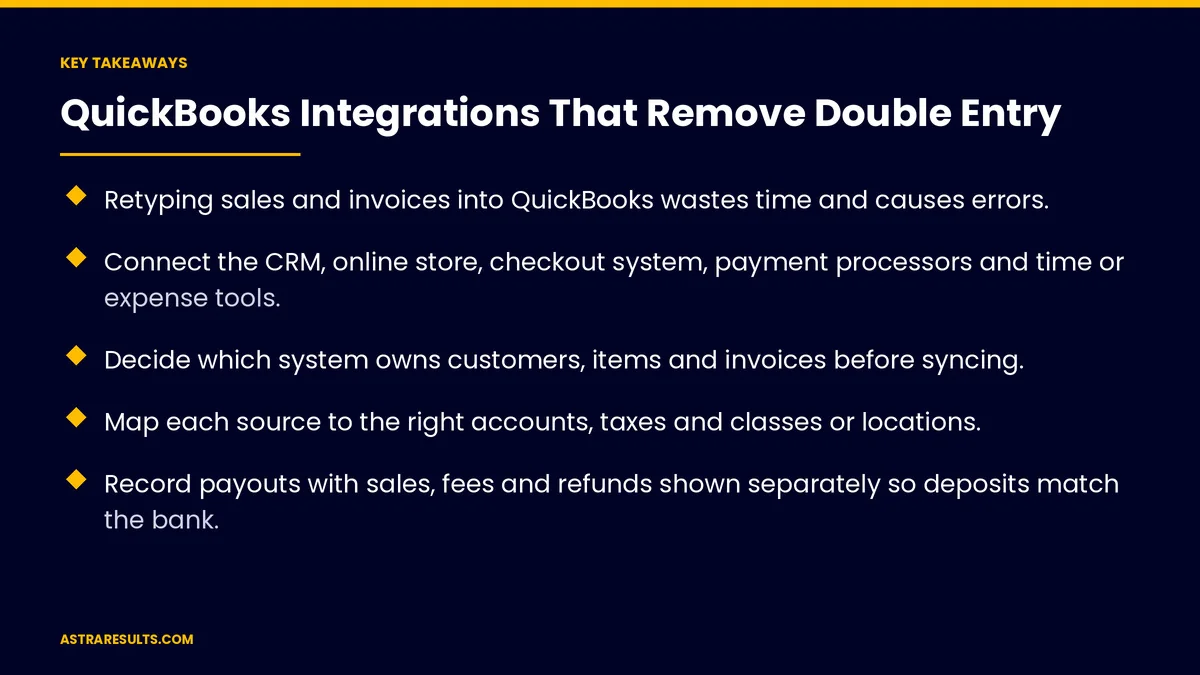
- Retyping sales and invoices into QuickBooks wastes time and causes errors.
- Connect the CRM, online store, checkout system, payment processors and time or expense tools.
- Decide which system owns customers, items and invoices before syncing.
- Map each source to the right accounts, taxes and classes or locations.
- Record payouts with sales, fees and refunds shown separately so deposits match the bank.
- Involve your accountant from the start, and lock closed periods.
Published: October 24, 2026 | Reading Time: ~9 minutes | Category: API Integration
This guide covers connecting business tools to QuickBooks: what to connect, which system owns each record, matching, mapping accounts and taxes, summary entries, payouts, errors, closed periods and working with your accountant. Put plainly: enter it once, map it carefully and make sure the bank balance still matches.
This is general information, not accounting advice. Involve your accountant in every integration.
In This Playbook
- Why does double entry into QuickBooks hurt?
- What to connect
- Decide which system owns what
- Matching customers and items
- Mapping accounts and taxes
- Summary or detailed entries
- Recording payouts correctly
- When something goes wrong
- Protecting the books
- Ways to connect
- What should a QuickBooks integration measure?
- The first three months
Why does double entry into QuickBooks hurt?
Lost time. Hours each week copying numbers between systems.
Errors. Typos, missed invoices and duplicate entries.
Slow month-end. Matching records takes longer than it should.
Late decisions. Financial reports lag behind what really happened.
What to connect
CRM. Customers and invoices from closed deals, as with connecting systems in connecting your CRM to your booking system.
Online store and checkout. Sales, taxes, discounts and refunds.
Payment processors. Payouts, fees and chargebacks.
Time tracking and expenses. Billable hours and receipts.
Orders. Customer purchase orders turned into invoices, as in wholesaler purchase order reading.
Bills. Supplier invoices, as covered in accounts payable automation.
Decide which system owns what
Customers. Usually created in the CRM, then synced to QuickBooks, whichever CRM you choose, as weighed in custom CRM or Salesforce.
Products and services. Often owned by the store or inventory system.
Invoices and payments. Decide where each starts and how updates flow.
One direction where possible. Two-way sync adds complexity and conflicts.
Write it down. As covered in planning an integration.
Matching customers and items
Avoid duplicates. Match customers by email or account number before creating new ones.
Consistent item names. Products and services named the same in every system.
Clean up first. Merge duplicates in QuickBooks before connecting.
Mapping accounts and taxes
Chart of accounts. Each type of sale, fee and refund goes to the right account.
Sales tax. Taxes recorded correctly, which may need your accountant's setup.
Classes or locations. Track results by department, store or region if you use them.
Test with real transactions. Check a week of data before going live.
Summary or detailed entries
Detailed entries. One record per sale, good for lower volumes and invoices.
Daily summaries. One entry per day for high-volume stores, keeping QuickBooks tidy.
Keep details elsewhere. The store or checkout system keeps each transaction.
Ask your accountant. The right choice depends on your volume and reporting needs.
Recording payouts correctly
Gross sales, not net deposits. Record full sales, then fees and refunds separately.
Match deposits to the bank. Payouts should equal what arrived in your account.
Chargebacks and disputes. Recorded when they happen.
Timing differences. Sales today may be paid out days later.
When something goes wrong
Error alerts. Someone is told when a sync fails.
Logs. A record of what synced and when.
Retries. Failed syncs try again automatically.
A manual fallback. Clear steps if the connection is down.
Protecting the books
Lock closed periods. Prevent changes to months already closed.
Limit access. Integrations get only the permissions they need.
Review monthly. Your accountant checks that synced data looks right.
Retire side spreadsheets. As covered in replacing spreadsheets.
Ways to connect
Built-in apps. Many tools offer QuickBooks connections. Check what they sync and how.
Connector platforms. Link tools without custom code, as weighed in integration platforms vs custom API work.
Custom integration. For unusual workflows or high volumes.
Online or Desktop. QuickBooks Online and Desktop connect differently, so confirm which you use.
What should a QuickBooks integration measure?
Hours saved. Time no longer spent retyping.
Errors found at month-end. Before and after.
Days to close the month. Before and after.
Sync failures. And how fast they're fixed.
Unmatched deposits. Payouts that don't match the bank.
The first three months
Days 1–30: map and clean
List every tool that feeds numbers into QuickBooks and how. Decide which system owns customers, items and invoices, clean up duplicates and agree on account mapping with your accountant.
Days 31–60: connect and test
Connect one tool first, often the store or payment processor. Test a week of real transactions, check deposits match the bank and set up error alerts.
Days 61–90: expand and close
Add the CRM and other tools, lock closed periods and review the first month-end with your accountant. Measure hours saved, errors and days to close.
How Astra builds QuickBooks integrations
Astra Results Marketing connects business tools to QuickBooks so numbers flow in once. We decide which system owns each record, map accounts and taxes with your accountant, record payouts correctly and set up alerts and logs.
We test with real transactions and protect closed periods. Engagements begin with a systems and bookkeeping review through our API integration team.
Related reading
Frequently asked questions
What can be connected to QuickBooks?
CRMs, online stores, checkout systems, payment processors, time tracking, expense tools and order or bill processing systems.
Should we send every sale to QuickBooks?
Not always. High-volume stores often send daily summaries, while each transaction stays in the store or checkout system. Ask your accountant which fits.
Why don't our deposits match QuickBooks?
Often because payouts are recorded as net deposits. Record gross sales, then fees and refunds separately, so totals match what arrived in the bank.
Should integrations sync both ways?
One direction is simpler where possible. Two-way sync can cause conflicts, so decide which system owns each record.
Do we need our accountant involved?
Yes. Account mapping, sales tax, summary choices and month-end checks all benefit from your accountant's input.
Does it matter which version of QuickBooks we use?
Yes. QuickBooks Online and Desktop connect differently, so confirm your version before choosing tools.
Ready to stop retyping numbers into QuickBooks? Astra Results Marketing connects your CRM, store, checkout and payment tools to QuickBooks with careful mapping, correct payouts, alerts and your accountant involved from the start. ▸ CALL (786) 321-2866 · ▸ REQUEST YOUR CONSULTATION