Rated 5 star on

Performance Tuning: Faster Launch, Lower Battery
Quick answer
Tune app performance by cutting launch time, freezes, crashes and background battery use. Google Play may show apps less often when crash rates pass 1.09% or noticeable freezes pass 0.47%. Apps that keep phones awake in the background get flagged. Test on older and budget devices, and check after every release.
Users judge an app in seconds. If it opens slowly, freezes or drains the battery, they delete it and warn others. App stores watch too: Google Play may show apps less often when crashes and freezes pass set limits. Performance tuning keeps an app fast, stable and light on the battery long after launch.
Key Takeaways
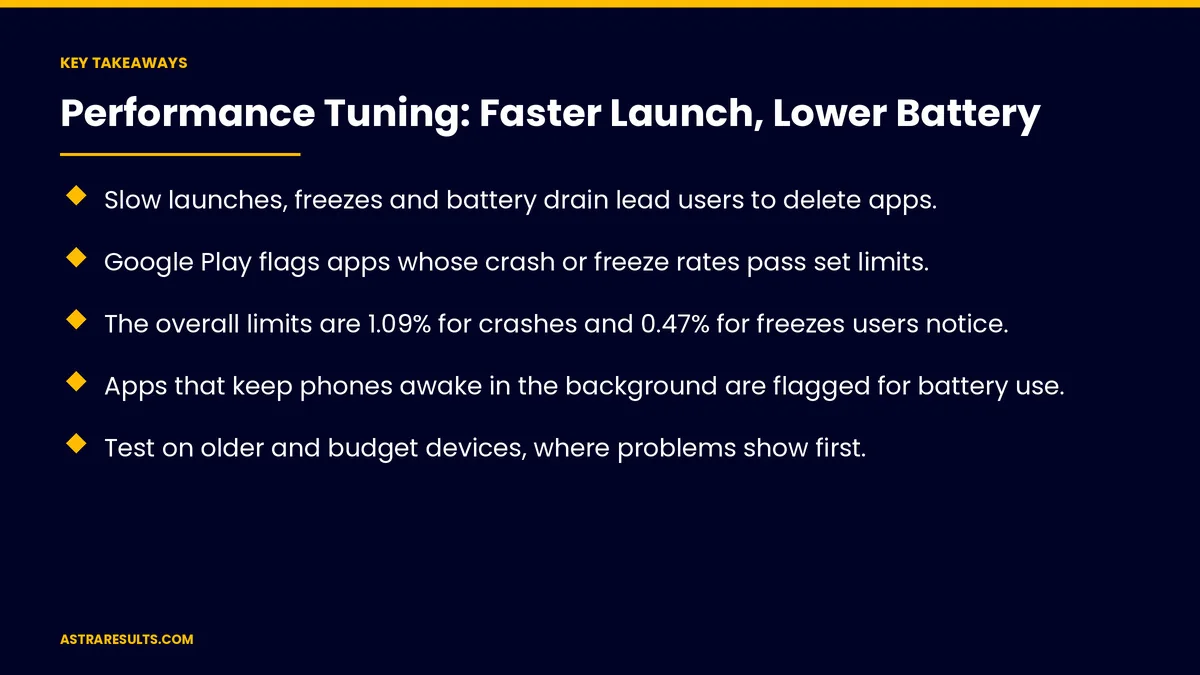
- Slow launches, freezes and battery drain lead users to delete apps.
- Google Play flags apps whose crash or freeze rates pass set limits.
- The overall limits are 1.09% for crashes and 0.47% for freezes users notice.
- Apps that keep phones awake in the background are flagged for battery use.
- Test on older and budget devices, where problems show first.
- Check performance after every release, not just at launch.
Published: October 14, 2026 | Reading Time: ~8 minutes | Category: App Maintenance
This guide covers app performance tuning: launch time, freezes, crashes, store thresholds, battery use, data and network use, older devices, measuring in the field, a tuning routine and what to measure. Put plainly: measure on real devices, fix the biggest problems first and keep checking after every release.
In This Playbook
- Launch time
- Freezes
- Crashes
- Which crash rates hurt an app on Google Play?
- How can an app use less battery in the background?
- Data and network use
- Older devices
- Measuring in the field
- A tuning routine
- What to measure
- The first three months
Launch time
First screen fast. Show something useful right away.
Load later what can wait. Only essentials at startup.
Fewer startup tasks. Each library adds time.
Freezes
The app stops responding. Users tap and nothing happens.
Heavy work off the main thread. Keep the screen responsive.
Long lists and images. Load in pieces.
Crashes
Find and group them. As covered in crash reports.
Fix the biggest groups first. The few causes behind most crashes.
Protect ratings. As covered in recovering from a bad release.
Which crash rates hurt an app on Google Play?
Google Play limits. Crash rates users see above 1.09%, or freeze rates above 0.47%, can reduce an app's visibility.
Per phone model. Above 8% on one model can bring a warning on the store listing for those users.
Check the console. Google Play and Apple both report these issues.
How can an app use less battery in the background?
Background work. Keep it short and rare.
Keeping the phone awake. Google Play flags apps that hold it awake too long.
Location. Only as often as needed, as in field team apps.
Data and network use
Fewer requests. Combine and cache.
Smaller images. Sized for the screen.
Weak signal. Handle slow connections gracefully.
Older devices
Test on budget phones. Problems show there first.
Older system versions. Still in use by many customers.
Know when to retire. As covered in retiring old app versions.
Measuring in the field
Real-user data. Launch time, freezes and crashes from actual devices.
By device and version. Find where problems cluster.
React Native specifics. As covered in performance in React Native.
A tuning routine
After every release. Compare with the last version.
Yearly system updates. As covered in iOS and Android updates.
Library updates. As covered in dependency updates.
What to measure
Launch time. Median and slowest devices.
Crash and freeze rates. Against store thresholds.
Battery and background use. Flags from the stores.
Ratings mentioning speed. Fewer complaints over time.
Retention. Users who keep the app, as tracked in iPhone app analytics.
The first three months
Days 1–30: measure
Collect real-user launch time, freeze, crash and battery data by device, and compare with store thresholds.
Days 31–60: fix the biggest
Fix the largest crash and freeze groups, speed up launch and cut background work.
Days 61–90: keep it fast
Test on budget devices, check after every release and track ratings and retention.
How Astra tunes app performance
Astra Results Marketing tunes apps for faster launch, fewer freezes and crashes and lower battery use. We measure on real devices, fix the biggest problems first and check performance after every release.
Engagements begin with an app health review through our app maintenance team.
Related reading
Frequently asked questions
Why does app performance matter?
Slow launches, freezes and battery drain lead users to delete apps and leave poor reviews.
What are Google Play's crash and freeze limits?
Crash rates users see above 1.09% or freeze rates above 0.47% can reduce visibility, and above 8% on one phone model can bring a listing warning.
How do apps drain batteries?
Through heavy background work, frequent location checks and keeping the phone awake.
Why test on older devices?
Performance problems show first on budget and older phones, which many customers use.
How often should we check performance?
After every release, after yearly system updates and when libraries change.
What should we measure?
Launch time, crash and freeze rates, battery and background use, speed complaints in ratings and retention.
Ready for an app that opens fast and stays stable? Astra Results Marketing tunes launch time, freezes, crashes and battery use, measured on real devices and checked after every release. ▸ CALL (786) 321-2866 · ▸ REQUEST YOUR CONSULTATION